TL;DR: This Ready or Not Commander mode guide starts with your save settings, then follows the campaign through squad selection, briefing, deployment, and the return to the station. Check Ironman deliberately before creating the run. After each mission, review both progress and officer availability before selecting the next deployment.
Commander is Ready or Not’s persistent singleplayer mode. It connects mission progression with a continuing roster of officers, their traits, and their condition. Managing that campaign means thinking beyond the next mission: the available team and the saved run matter when you return to play again.
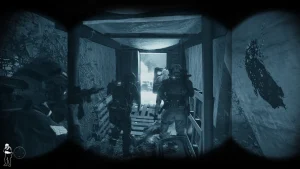
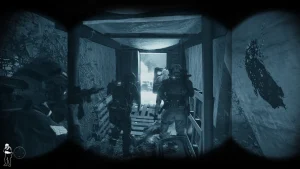
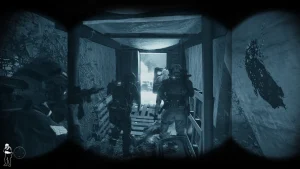
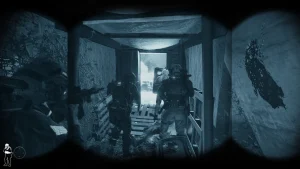
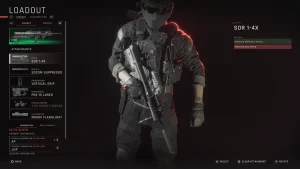
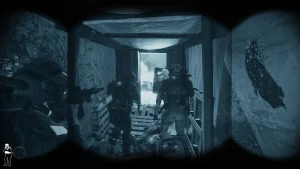
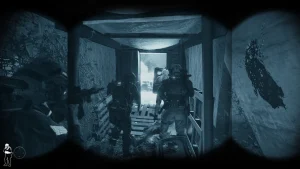
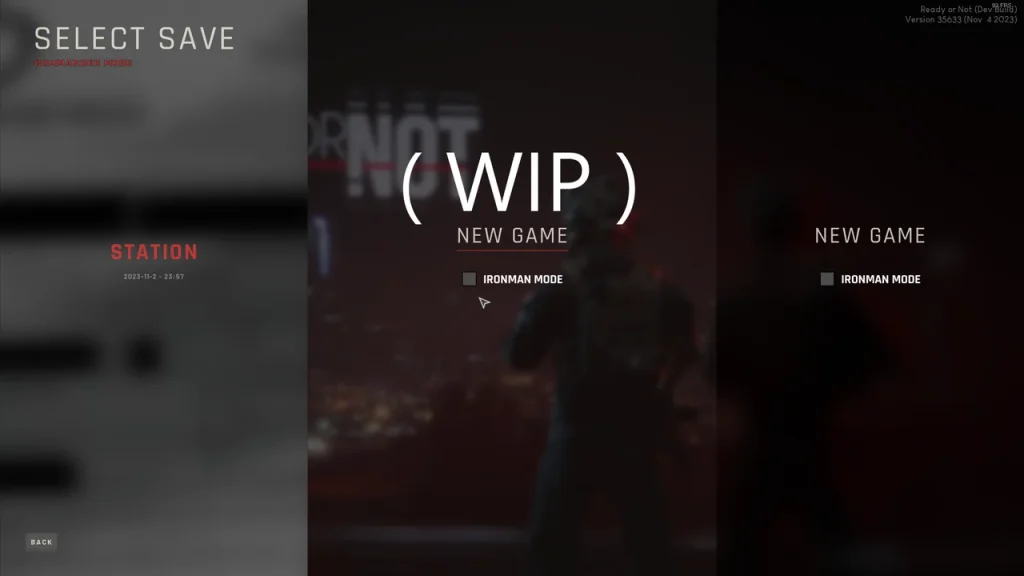
This guide focuses on the campaign sequence rather than repeating the separate stress-management article. It uses official mode descriptions and release notes checked November 9, 2026. Screens marked work in progress are historical illustrations, not instructions to locate an identical button in today’s interface.
On this page
1. Ready or Not Commander mode guide: create the right save
Start by checking the mode, difficulty, and Ironman setting. Those choices answer different questions. Commander selects the persistent solo experience; difficulty changes the challenge; Ironman adds a specific consequence for your own death. Do not treat the three labels as interchangeable.
The 1.0 feature announcement introduced Commander progression, save slots, officer traits, and the stress system. It separately described Ironman as a permadeath option that deletes the save when the player dies. Choose that only if losing the run is part of the experience you want.
For a first campaign, keep the save recognizable and record which settings you chose. If you also maintain a separate experimental run, make sure you know which slot you are loading. A simple note with the slot, difficulty, and last completed mission can prevent confusion when returning after a break.
Difficulty selection changed after launch. The Los Sueños Stories release added Casual, Standard, and Hard settings, including Commander support. The release describes differences in AI behavior and trap conditions. An older campaign guide may therefore show a menu without the same difficulty choices.
| Setting or campaign element | What it controls | Check before proceeding |
|---|---|---|
| Commander mode | Persistent singleplayer campaign | You want roster and progression management |
| Difficulty | The mission’s challenge settings | The displayed choice matches your intended run |
| Ironman | Save deletion when the player dies | You accept that specific consequence |
| Save slot | Which campaign you continue | The slot belongs to the run you intend to load |
| Active officers | Who joins the next deployment | Their availability and equipment fit the plan |

Historical fixes also show why saved settings deserve attention. The July 2025 patch fixed new Commander progress not saving after training. The August patch fixed Ironman settings not applying correctly when creating a save. These are dated resolved issues, not claims that every current save is broken.
On a new run, confirm that you are in the intended campaign after training and check what the interface shows before continuing. If something does not persist on your current build, describe the actual sequence and settings. Repeating a historical workaround without checking the installed version can introduce more confusion than it solves.
2. Select your available squad before choosing equipment
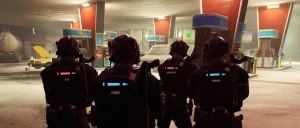
Review which officers are available, then choose the active squad and its equipment. A campaign roster is not simply a permanent set of four names. Officer condition and loss can affect who is available for the next mission, and traits become another consideration as the run develops.
The Commander development briefing described the interaction among officer loss, traits, and mental health. The subsequent 1.0 announcement confirmed the released stress and trait systems. Use the briefing for design context and the current roster screen for the details of your own officers.
Read a trait description before basing a selection on its name. Do not assume a historical preview’s example has exactly the same wording or effect in your current build. A trait can support a particular play style, but it does not replace understanding the mission, setting equipment, or using squad controls correctly.
If an officer is unavailable, select a replacement deliberately instead of assuming yesterday’s active squad is still intact. Check the replacement’s equipment as well. A roster change and an equipment change are different decisions, and overlooking the second can leave you uncertain about which tool is available during the mission.
Keep the setup readable while learning the campaign. Reusing a familiar weapon and supported attachments reduces the number of controls you must relearn alongside the briefing. The weapon attachments guide explains how to distinguish a fitted item from its active device or sight mode.
For example, you can choose your four available officers first, confirm their loadouts, and then decide whether the group has the equipment you intended. If the planned setup is not possible, revise it at the station. That is easier than discovering during a mission that you were thinking about an officer or accessory from a different save.
Officer availability needs a continuing routine, but this article does not prescribe fixed recovery times or universal stress thresholds. Our stress management guide focuses on reading those statuses, rotating the roster, and understanding the official recovery options. Here, the important campaign step is to inspect the roster before every deployment.

3. Use the station and tablet to prepare the mission
Read the selected mission’s briefing and objectives before leaving the station. The station is the campaign’s working hub, while the tablet carries the information you need to connect mission context with specific tasks. Use both to reduce avoidable uncertainty about what the deployment asks you to complete.
The 1.0 release documented tablet briefings, dispatch calls, objective lists, available maps, known contacts, and team information. It also described the station changing as Commander missions are completed. Those features give the campaign continuity beyond a sequence of disconnected loading screens.
Start with the objective wording. Identify the difference between a general requirement and a named-person or specific-report task. If the briefing includes a particular contact, keep that information available rather than relying on memory from a video of another mission. The civilian rescue guide covers how to follow those contact-related tasks.
Maps and briefing pictures provide information, but they do not guarantee a particular NPC position. Treat them as references for the selected mission. A walkthrough recorded under different settings or mods may show circumstances that do not match your current run.
Use the station’s range to familiarize yourself with a changed weapon or control. The campaign already asks you to read mission context, control AI teammates, and monitor progress. Reducing uncertainty about equipment activation leaves fewer unfamiliar actions competing for your attention.
Our SWAT AI commands guide covers the command interface used for computer teammates. Check the team selection shown in your own interface before issuing a command, especially when switching between individual officers and group controls. Learning that interface is part of preparing a solo campaign.
There is also a mode distinction to remember. The v1.4.1 release added direct Quickplay mission loading and related loadout conveniences. Those Quickplay features do not make Commander progression disappear. If you want to experiment outside the continuing campaign, choose the appropriate mode deliberately and check it again when returning to your saved run.
4. Review mission progress and return with a usable plan
After a mission, review what the campaign recorded and which officers are available next. Completion and roster condition are separate results. A mission can move your run forward while also changing the squad you will use on the following deployment.
Check the debrief and mission selection state rather than assuming progress from the last encounter alone. The campaign’s objective list provides a better reference than remembering that the map looked finished. If a task remains unresolved, read its wording before deciding what you missed.
The original Commander briefing described missions unlocking through completion. Do not substitute a universal grade threshold for the information shown by your current mission screen. Unlock requirements, achievements, and cosmetic rewards are different systems; a claim about one is not automatically a claim about all of them.
Officer loss also needs to be distinguished from Ironman. The campaign roster can suffer permanent losses, while Ironman adds deletion of the player’s save upon the player’s death. Keeping those outcomes separate helps you understand what risk you accepted when creating the run and what changed after a mission.
If you decide to leave a mission early, check the game’s exit options instead of treating an abrupt restart as equivalent to a completed return. The 1.0 announcement introduced exfiltration from the mission’s spawn point as a way to quit early with less officer stress. That documented feature is not a promise that every exit method has identical campaign consequences.
Before ending a session, note the campaign slot, current mission progress, and any officer changes that will matter next time. Keep the note short: “this slot, this difficulty, this completed mission, review roster before next deployment.” It is a personal continuity aid, not an alternative to the game’s save system.
When you resume, load that same run and inspect the roster again. Equipment experiments in Quickplay and another campaign slot should not become assumptions about this one. A brief station check keeps the next deployment connected to what your previous session actually recorded.
The practical campaign rhythm is straightforward: verify the run, select available officers, read the mission, deploy, and review the recorded result. Learn that sequence before adding Ironman or turning the campaign into a completion challenge. It gives every later choice a clear place in the run.
Frequently asked questions
Is Commander mode the same as Quickplay?
Commander is the persistent singleplayer experience with campaign progression and roster systems. Quickplay has its own mission-loading conveniences. Check the mode you selected before assuming a session will advance or continue the same saved campaign.
Does ordinary Commander delete my save when I die?
The official save-deletion rule is attached to the optional Ironman setting. Commander roster loss and Ironman save deletion are separate consequences. Read the save’s displayed settings before starting rather than treating every Commander run as Ironman.
Why should I check officers before every mission?
Availability and condition can change during the campaign, and replacements may need their equipment reviewed. Select the active squad deliberately, read current trait descriptions, and confirm loadouts. A previous deployment does not guarantee an identical next squad.
What if a new campaign does not appear to save correctly?
Confirm the installed version, slot, and actual sequence first. Official 2025 patches fixed specific training-progress and Ironman-setting issues. If a current problem remains reproducible, report those details instead of assuming a historical bug still affects every run.


Sources and update scope
Official campaign lifecycle, save settings, station information and persistent roster systems. Historical UI is labeled; no fixed stress thresholds or guaranteed unlock grade claimed. Sources reviewed November 9, 2026.
1.0 Launch Major Feature Changelog, 1.0 Out Now! (2023-12-13).
Vol.63 – Ready or Not Development Briefing (2023-11-03).
Los Sueños Stories Update Changelog (2025-07-15).
Los Sueños Stories Patch#1 (2025-07-28).
Los Sueños Stories Patch #2 (2025-08-07).
RoN v1.4 Boiling Point Release Changelog (v1.4.1) (2026-03-12).
Sources and further reading
- https://steamcommunity.com/games/1144200/announcements/detail/3859085878636601510
- https://steamcommunity.com/games/1144200/announcements/detail/561377319446381025
- https://steamcommunity.com/games/1144200/announcements/detail/526475421347217923
- https://steamcommunity.com/games/1144200/announcements/detail/526476689498177893
- https://steamcommunity.com/games/1144200/announcements/detail/3801661174266563081
- https://steamcommunity.com/games/1144200/announcements/detail/532125218178599594