TL;DR: Use this Arma Reforger server browser guide to search for a session, check its scenario and platform conditions, compare connection information, and inspect required content before joining. If results look wrong, review active filters first. A full session’s player queue is separate from downloading its mods.
The server browser is a discovery and selection tool, not a guarantee of admission. A listing tells you which session you are attempting to join; the subsequent prompts determine whether content, access, and available space meet your needs. Read both the listing and the join response.
Choose the experience you want before sorting a long list. A specific friend’s community session, an official scenario with few content requirements, and a custom terrain session are different searches. This guide helps you narrow the list without treating a familiar server name or a low ping as a complete recommendation.
On this page
Arma Reforger server browser guide: verified features
Bohemia’s original crossplay update documented crossplay filters, official/community filters, and sorting by ping. Those are historical feature introductions. This article does not claim every current client uses the same button locations or default sorting.
The 1.9.0.37 changelog specifically fixed the first server-browser search not taking filters into account. We read that release note and the official queue announcement; we did not inspect a running browser on each platform. Follow the labels and status shown by your installed build.
1. Search for the session you actually want
Open the game’s multiplayer server browser and begin with a clear search. If a friend supplied a server name, enter a distinctive portion and compare the resulting listing with their details. Avoid selecting the first partial match solely because its name looks familiar.
Read the scenario or content context alongside the name. A community can run several servers with different maps or missions. The same branding does not show that a session uses the experience you wanted, and an operator can change a scenario while retaining a recognizable name.
For general browsing, first decide whether you want an official or community session. The official/community distinction helps organize the search, but it is not a quality score. Community listings can introduce custom content and their own rules; an official listing should still be read for its actual scenario.
Review active filters before drawing conclusions from an empty result. A platform condition, content choice, or remembered restriction can narrow the list more than you intended. Broaden one condition at a time, then run the search again so you can tell which change affected the results.
If the first search behaves unexpectedly on an older build, finish game updates and repeat the search deliberately. The 1.9 release note provides evidence of a corrected filter issue. It does not show that every missing listing is that bug, or that repeating a search guarantees a hidden server will appear.

2. Check platform eligibility and session access
Inspect the listing’s platform or crossplay information before joining a mixed-platform group. The browser’s job is to identify a possible destination; your account and the server’s conditions still determine whether entry is allowed.
For friends on PC, Xbox, and PS5, use the crossplay guide to align the group’s releases and permissions. General game support should not be turned into a claim that every community server accepts every platform.
Treat a password requirement or admission message as its own condition. A searchable listing is not necessarily open to every player. Obtain any required access through the community’s stated process and avoid sharing a private password in a public troubleshooting post.
Distinguish visibility from permission. If you can see the server but cannot enter, widening discovery filters alone may accomplish nothing. Read the joining message and identify whether it concerns content, account eligibility, access, or session state.
Check the intended release as well. The official FAQ describes Reforger Experimental as a testing ground. Do not assume a test-build session is an appropriate target for a stable-release client merely because it contains a familiar map name.
The useful outcome of this step is one eligible candidate with known access conditions. Save its identity before continuing to the connection and content checks. That prevents a later attempt from silently switching to another similarly named destination.
3. Compare ping, population, and the join queue
Use displayed ping as one connection indicator. It is a measurement associated with that listing and moment, not a guarantee of a smooth session. The server’s work, your connection, and loaded content can affect the eventual experience in ways one number does not summarize.
For a US-based player, compare the browser’s reported values rather than choosing solely from a region abbreviation in the name. A label can help identify an advertised region, but the actual displayed connection information is more useful than assuming a name proves physical hosting location.
Read the player count and capacity as current listing information. A nearly full session can change while you inspect it. Your friend entering first does not reserve a place for you, and four available places in a stale result do not guarantee that a group can enter together.
Bohemia’s December 2024 update introduced the server queue: join it and let the game connect when a space becomes available. If your client offers that option, distinguish waiting for a player slot from downloading required content.
Do not turn a queue position into a fixed time estimate. Spaces depend on players leaving and session availability. If your goal is a short visit, another eligible listing with room may fit better; if your group is already inside, waiting can preserve the chosen destination.
After a queue completes, check whether you have actually loaded into the session. A transition from waiting to loading is progress, but it is not yet proof of a completed connection. Record a subsequent error as a loading outcome instead of describing the queue as still running.
4. Read required content before committing to a download
Inspect the required addons shown for the selected session or during joining. A custom terrain, equipment package, or scenario dependency can introduce downloads you did not need for a previous server. Use the destination’s actual requirements rather than a generic "best mods" list.
The Workshop setup guide explains the player installation path. The current official FAQ includes PC, Xbox, and PS5 downloads, but the content still needs to be suitable for your platform and game release.
| Browser or join stage | Read this information | Decision it supports |
|---|---|---|
| Search results | Exact name and scenario | Whether this is the intended destination |
| Platform notice | Crossplay or platform condition | Whether the candidate suits your group |
| Connection comparison | Reported ping and population | Which eligible candidate to try first |
| Required content prompt | Addon identity, status, and requirements | Whether to finish the requested set |
| Full session response | Offered player-queue status | Whether to wait or choose another candidate |
| Rejected join | Exact message and failed stage | What to investigate next |

Check available storage before starting substantial content downloads. A mod already downloaded for another server may be a different version from the one requested here. Let the client’s actual requirement tell you what is missing instead of replacing it with a similarly named package.
If one addon fails, retain its name and stage. Avoid choosing several new servers in quick succession while diagnosing it, because each destination can introduce a different content set. A clear target makes a support report much easier to interpret.

Finding a missing server without guessing
Begin with spelling and identity. Ask the person already connected to verify the exact listing name and scenario. A remembered abbreviation can be insufficient if a community has renamed or split its sessions.
Next compare releases and filters. Repeat the search after making one visible change, such as broadening a discovery condition. If the listing appears, record which condition had excluded it. If it remains absent, do not claim a cause that the browser has not established.
Temporary availability is another possibility, not a diagnosis. A server can restart or stop advertising while you search. Use the operator’s current status information when available, and avoid treating an old screenshot of an active listing as evidence that the session must be online now.

Choose for the next session, then keep a short record
A good candidate fits the scenario you want, accepts your platform, has content you can load, and provides a practical way to enter. Ping is one factor within that choice. A server with attractive connection information but unavailable requirements does not solve your immediate problem.
After a successful join, record the name, scenario, release, and required content that worked. A favorite or history feature, where offered by your current client, can help return to it. Still check the listing on later visits because an operator can change content or availability.
Use this Arma Reforger server browser guide to make one informed selection at a time. If admission fails, preserve the exact stage and message before changing the destination. That gives your next check a specific purpose.
Frequently asked questions
Why is the server list empty?
Review active filters, the search term, and the release you are running. Then repeat the query after a deliberate change. An empty list alone does not establish that all servers are offline or that your platform is unsupported.
Does the lowest ping identify the best server?
It identifies one reported connection value. Scenario fit, platform conditions, required content, population, and access also matter. This guide does not infer server hardware, location, moderation quality, or guaranteed session performance from ping.
Is the server queue the same as a mod download queue?
No. The documented player queue waits for room in a full session. A content download prepares required packages on your device. Watch which status the client is showing so you do not troubleshoot storage while actually waiting for a player slot.
Why am I asked to download mods again?
Check which addon and version the selected session requests. A different server can require a different set, and installed content is not proof that this destination’s requirements are satisfied. Record the exact prompt before removing anything.
Sources and update scope
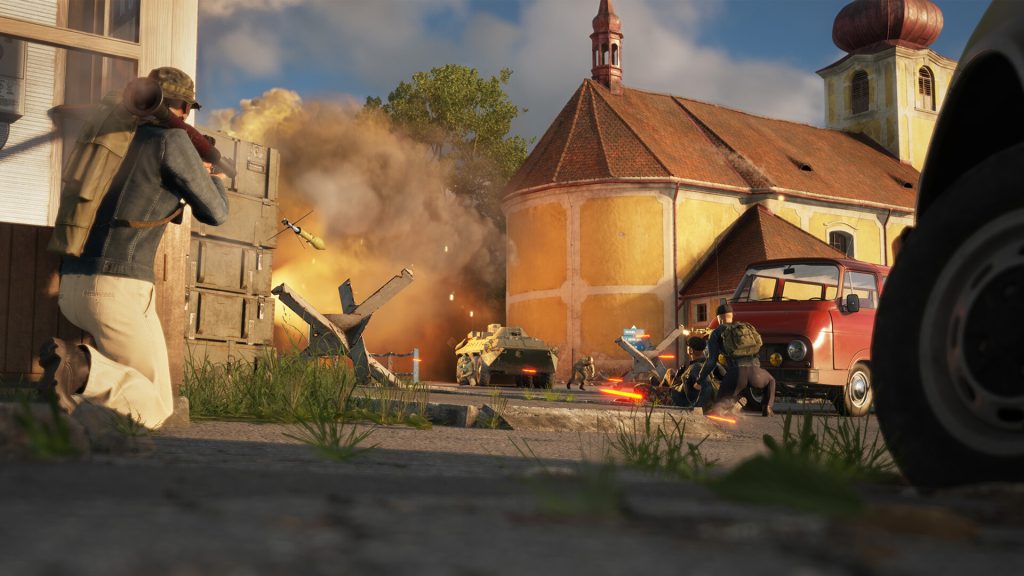
Read on November 8, 2026: Bohemia’s crossplay and filter introduction, server queue announcement, 1.9.0.37 changelog, and official FAQ. Historical browser features are identified as such. We did not test current ping, player counts, filters, or any named community server. Images are official game scenes rather than browser-interface captures.