TL;DR: This Arma Reforger Game Master guide begins with a blank offline scenario: choose a terrain from GAME MASTER, place a small set of editable assets, switch to your avatar, and verify the result. Save that small scenario before expanding it. On a multiplayer server, editing access and available content depend on the session’s permissions and addon collection.
Game Master is Reforger’s in-game scenario creation and management mode. It lets an authorized player place configured assets and shape a session without using the separate Workbench development toolset. Editing, server administration, and camera tools have different access conditions, so receiving one role does not automatically grant every control.
For a first creation, build one simple playable situation rather than a crowded island. This guide focuses on the software workflow, source-documented limits, and a useful save check. It does not claim to have tested a present client or hosted a public session.
On this page
Arma Reforger Game Master guide: the verified scope
The current official FAQ describes access, editable content, online/offline differences, and scenario saves. We read its published answer text, including the platform and permissions sections. PC, Xbox, and PS5 have Game Master; this does not make the PC-only Workbench available on consoles.
The 1.6 changelog added Game Master content on Kolguyev and specific settings. The 1.7 changelog changed persistence and states that old save data is incompatible. Treat those version notes as part of the workflow, not an assurance that any historical save loads in every current session.
1. Open a small offline scenario and identify your mode
From the main menu, open GAME MASTER and choose the terrain where you want to start. The FAQ describes this as a blank world for a scenario created from scratch. Offline creation gives you a controlled place to inspect the editor before introducing other players or a server’s permissions.
Choose a limited area and a short first objective for your own test. A few characters, one vehicle, or several props are enough to learn selection and placement. Adding many unrelated assets at once creates more possible explanations when the result differs from what you intended.
Identify whether you are using the editing view or playing as your avatar. The FAQ gives the pause-menu route through Game Master or Close Game Master to switch between those states. Use the current menu and input hint; keyboard layouts and controller combinations are not interchangeable.
The documented menu keys are ESC on keyboard, Options on DualSense, and Menu on an Xbox gamepad. This is a source-described access route, not a complete default-binding chart for every device. If your assignment differs, check the controller keybindings guide.
Keep the scenario purpose visible to yourself. For example, an inventory-interface demonstration needs an accessible character and the intended content; it does not require a full battle simulation. That limited goal helps you verify the editor’s output before spending time on additional detail.
Save a recognizable starting version once the small setup is usable. A named working reference helps later comparison, particularly if you add a dependency or change game settings. Do not confuse saving the scenario with proving that it will behave identically on another build or server.

2. Place configured assets and verify the playable result
Use the editor’s available catalogue and select an asset suited to the test. The FAQ lists characters, vehicles, buildings, props, and compositions among placeable content. A composition groups assets; it is not necessarily a new terrain or a complete mission with every setting already supplied.
Read what the selected item is before placing several copies. Two catalogue entries can have similar names but different configurations or intended uses. Start with one, inspect its position, and enter the avatar view to see whether it serves the scenario’s purpose.
The FAQ says an entity prefab can be editable when configured for editing. It does not say every world object is editable. Existing world trees are its explicit counterexample: a newly placed tree can be edited, while an existing tree is not made editable merely because you can see it.
Distinguish placed assets from the existing terrain. If selection does not pick up a world object, first check whether that object is part of the editable set. Repeatedly trying another selection angle is not evidence that a protected or unconfigured object should become editable.
Verify accessibility after placement. A prop at the intended location can still obstruct the character or make a test awkward. View the result through the playable avatar rather than assessing every detail only from the free camera.
If you move a character, check the final position and context. The 1.7 notes fixed a case where a character pulled from water could not be placed on the ground until altitude was adjusted. That documents a particular corrected editor issue; it is not a current universal shortcut or proof that every failed placement is the same bug.
Make one change, verify it, and retain the successful result. That sequence gives the scenario a readable history. A large set of unexplained placements is harder to maintain and can hide the one setting responsible for a problem.
3. Check multiplayer permissions and the server’s content
The blank Game Master mode and a public Conflict session do not have identical access rules. The FAQ describes players voting for Game Master on Game Master servers. In Conflict, default access is limited to the host or administrators, while administrators or scenario designers can configure additional rights.
Confirm your actual access before assuming a missing editor button is a fault. Joining a server, leading a group, and holding the Game Master role are separate conditions. A group’s gameplay leader does not become a server administrator by being elected.
The FAQ also separates Edit, Admin, and Armavision modes. Admin concerns server and player management, while editing concerns scenario content. Later release notes restrict Armavision in multiplayer to prevent exploits, so an older blanket statement that every camera feature is open to everyone should not override current session permissions.
Check the server’s addon collection when content is missing from the catalogue. The FAQ says server-installed mods can add Game Master content when it is configured for that mode. On a dedicated server, your individually subscribed compositions are not a substitute for the server collection.
Use the Workshop setup guide to understand local installation, but keep local content and server content distinct. Installing a package on your device does not establish that the dedicated session includes it or exposes an editable version.
If you are arranging a shared scenario, agree on the content set and permissions before the session starts. That avoids asking players to diagnose a missing item that was never installed on the host. It also makes clear who is responsible for editing the scenario while others play.
Do not make public-session edits solely to test access. Start with a private or agreed test context and respect the session’s intended experience. The technical question is which rights were granted, not whether a visible control can be used without regard for the other players.
4. Save, reload, and account for version changes
The FAQ describes manual saves and autosaves in single-player Game Master, with saved progress available to load. Offline scenarios can also be loaded onto multiplayer servers. Other multiplayer sessions can have periodically saved state when configured by administrators.
Those descriptions identify available workflows, not a promise that every public server automatically saves everything. Determine who controls the save configuration and which scenario is being loaded. A session restart and a local file save are different operations.
The 1.7 changelog explicitly says the persistence UUID layout changed and old save-game data became incompatible and would be ignored. Binary became the default save format for all missions. That matters when diagnosing an old scenario after an update: an incompatible file is not evidence that the editor never supports saving.
The same changelog lists fixes for Game Master placed spawn points, faction affiliation, supply usage, enabled state, and duplicated tasks after loading. These are specific persistence corrections. They should not be expanded into a claim that every possible entity or modded state now survives every save.
| Workflow or symptom | Verify this distinction | Source-defined limit |
|---|---|---|
| Starting from GAME MASTER | Offline creation versus joining a server | A multiplayer role may require permission |
| Placing an asset | Editable configured content versus world terrain | Existing world entities are not all editable |
| Missing custom composition | Local subscription versus server collection | Dedicated sessions use server content |
| Pause or restart unavailable | Offline versus online operation | FAQ excludes those controls in online Game Master |
| Reloading an old save | Save version and current build | 1.7 explicitly broke old save compatibility |
| Server state not retained | Local save versus admin-configured persistence | Public sessions do not imply automatic persistence |

Test a saved small scenario by loading it into the intended context and inspecting the important objects and settings. Record any lost or changed state before adding more content. This is a recommended validation step; we did not perform it on a running game for this article.

Online and offline time controls differ
The official FAQ says offline Game Master can pause time, restart, save, and load. Online Game Master cannot pause time or restart the scenario through that role’s normal workflow. Do not tell a player to use an unavailable offline control while other people are in the session.
The distinction also affects testing. Offline creation lets you stop and inspect a small setup. Multiplayer testing involves other connected players and the server’s state. A scenario that looks correct in a paused editor still needs evaluation in its intended shared context.
If your goal is a complete reset of a hosted session, follow the host’s actual administrative process. The Game Master role and the right to manage a server are different. This guide does not provide credentials, claim a universal restart command, or assume every elected editor is an administrator.

Use game settings deliberately
Update 1.6 added an Enable MSAR toggle to the Game Master Game Settings tab and transceivers for Game Master radio use. Those are particular controls with defined purposes. They do not turn all scenarios into HQC or make every group and resource rule identical.
If you change a scenario setting, write down why it was changed and the behavior you want to check. A supply-budget setting, a faction configuration, and an editable composition each affect different parts of the result. Keep them separate in your test notes.
The Conflict mode guide explains HQC as a gameplay context. Having its assets in a catalogue should not be mistaken for having every objective, task, or network rule configured automatically in a new blank world.
Keep the creation maintainable
Use a small working version as the reference and expand it in stages. Check the playable view after changing assets, then check the intended save path after changing settings or dependencies. Record the game build and required content with the scenario.
For a useful report, identify the selected terrain, online/offline context, actual role, affected asset, and exact result. Include whether the issue happened during placement, playing, saving, or loading. Those stages involve different systems.
Finish this Arma Reforger Game Master guide with a scenario you can explain: what the player does, which assets support that action, who can edit it, and how its state is checked. A larger catalogue is useful only when those basic decisions remain clear.
Frequently asked questions
Does every Conflict player get Game Master access?
No. The current FAQ says default Conflict access belongs to the host or administrators, with configurable additional rights. A group leader or ordinary player should check the server’s granted permissions rather than assume editing access.
Why is a subscribed composition unavailable on a dedicated server?
The FAQ distinguishes the server’s installed content from a player’s individual subscriptions. Dedicated sessions rely on the server collection. Confirm that the required package is included and configured for Game Master.
Can an online Game Master pause time?
The FAQ says online Game Master cannot pause time or restart the scenario through that workflow. Offline Game Master supports those operations. Server administrative rights are a separate question.
Why might an older save be ignored?
The 1.7 changelog explicitly changed persistence UUID layout and marked old save data incompatible. Check the file’s version and intended context. That does not establish the cause of every current save failure, particularly with mods.
Sources and update scope
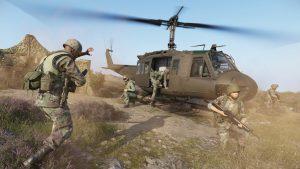
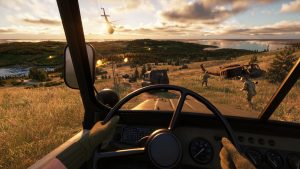
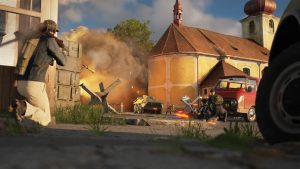
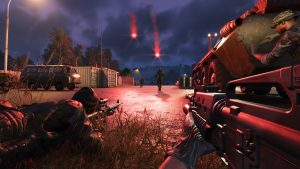
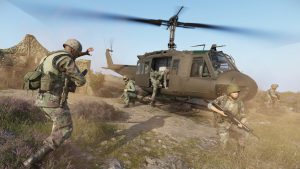
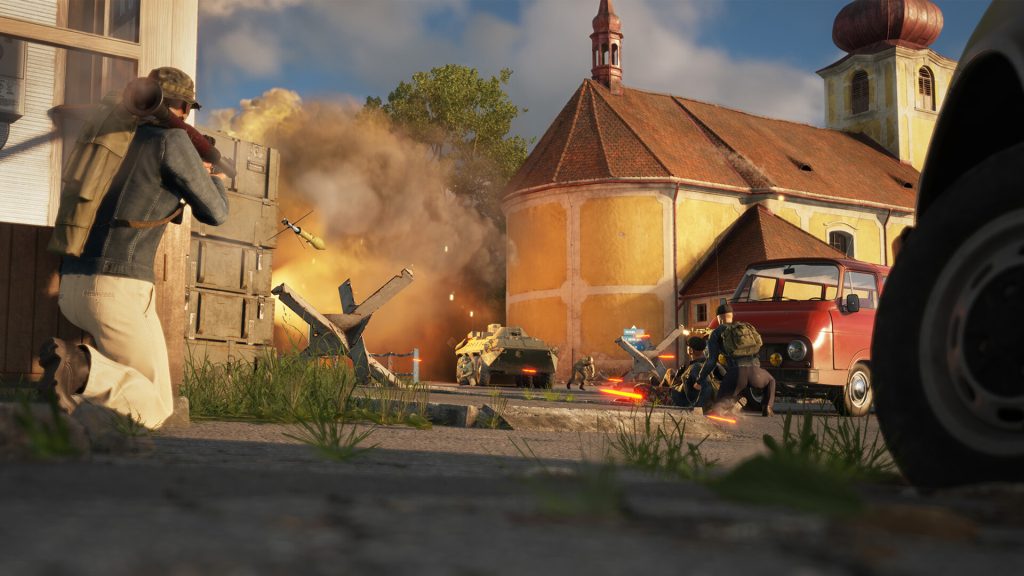
Read on November 8, 2026: the official Game Master FAQ, 1.6 changelog, 1.7 persistence and editor changes, and 1.9 current changes. We did not create, host, save, or reload a scenario for this article. Screenshots are official game scenes, not tested editor-interface evidence.