TL;DR: This Hell Let Loose Officer guide explains the infantry leadership role through unit selection, watch equipment, communication channels and marker audiences. Select the actual Officer role, distinguish Outpost from garrison in the watch menu, and read who receives a voice message or map mark. The same symbol or control does not grant identical permissions to every role.
The developer-reviewed handbook identifies the Officer’s watch and binoculars alongside its unit communication functions. The watch selects deployment objects with different requirements, while the marker interface communicates information to particular audiences. Read each tool’s current item or label before using it. A map coordinate describes a location; it does not establish creation permission or who can see a mark.
This is a documentation-based guide for original Hell Let Loose, checked on November 8, 2026. It uses actual infantry-leadership handbook pages and newer official interface updates. We did not test a current client or claim experience leading a public unit. The article concerns game roles, menu controls and interface feedback rather than real military leadership or activity.
On this page
Hell Let Loose Officer guide: four useful control checks
Four checks define the interface workflow: identify your selected role and unit, inspect the watch’s chosen item, choose the intended communication channel, and read the audience and state of a map marker. These are separate controls. Selecting a role does not confirm a deployable was built, and selecting a marker does not establish that every teammate received it.
The handbook is an Update 10 document, while official Updates 14, 15.1, 17.1 and 18 revise parts of the broader interface. Use the older material to understand the underlying role relationships, then use the current client and newer documented exceptions for exact menus and audiences. We do not treat one old diagram as an exhaustive list of every later control.
1. Identify the selected role and unit
The infantry Officer is the role discussed in the handbook’s squad-lead page. It is different from the team Commander and the Recon Spotter. Later official Update 19 adds an Artillery Observer in another unit context. Similar communication or map functions do not make those roles identical. Begin by checking the role name and unit type shown in the current selection interface.
The handbook’s newcomer page illustrates a unit list, a join-unit arrow and separate role selection within the game. Those controls identify the group you are joining and the role you are occupying. A player appearing in a unit list is not automatically its Officer. Confirm the selection itself before expecting the watch or leadership-channel functions described for the role.
Availability and loadout progression are separate questions. Official Update 15.1 revised deployment and Barracks UI and added clearer experience information for loadouts. That can explain why a role and an individual loadout present different availability readings. Do not use a locked equipment choice to infer that the entire leadership role has been removed from the game.
The unit’s access controls also belong to that unit context. Official Update 15.2 documents a focus issue involving a locked unit Officer’s kick-player popup, showing that these are distinct UI controls with their own state. This guide does not claim that the old focus issue still affects every current client. Read the current unit interface rather than substituting an unrelated marker or inventory control.
If your goal is to understand another role’s local ability, the Medic guide explains revival and Call & Response. Those are not Officer watch functions. Keeping the selected role explicit prevents the article’s leadership tools from becoming a universal inventory tutorial for every player in the unit.

2. Inspect the watch selection and placement feedback
The handbook gives the Officer a watch that selects Outpost or garrison. Its PC example opens a placement preview with the watch equipped, changes the chosen item with the scroll wheel and confirms through the appropriate action. Use the configured controls in your client and read the preview’s item name. A familiar input sequence is not enough if it currently selects the wrong deployable.
The selected item changes the relevant requirements. The handbook describes Outposts as squad-specific and requiring no supplies, while garrisons provide team-wide deployment and need supplies. These are different creation requests from the same tool. A supply requirement attached to a garrison preview should not be interpreted as a newly discovered cost for an Outpost.
The placement preview, creation confirmation and resulting deployment entry are different stages of feedback. A preview describes the proposed item; the accepted action creates its game object; the deployment list describes its current access state. This guide does not guarantee that every preview is valid or invent a universal rejection message. Preserve the actual item and displayed reason when interpreting a failed creation attempt.
For the full OP-specific creation and availability workflow, use the Outpost guide. The garrison guide covers the separate supply and territory requirements for that item. The watch lets you select between them, but it does not erase their different ownership, resource or placement rules.
The supplies guide also separates local construction stock from manpower, munitions and fuel. That distinction matters when interpreting a watch requirement. A team resource counter is not automatically the nearby physical construction supply available to a selected garrison. Read the actual category rather than treating every resource number as one shared balance.
3. Choose the intended communication channel
The handbook describes separate local, unit and leadership voice contexts. Its infantry Officer example uses C for the unit channel and X for communication with fellow Officers, while the general role pages illustrate V for local voice. These are documented PC bindings, not a universal command sequence for controllers or remapped keyboards. Use the current configured actions and check the intended channel.
The audience is the important difference. A unit message, local message and leadership message reach different contexts in the documented system. Being able to use several contexts does not mean every spoken message is sent to all of them. Confirm the channel before treating a lack of response as evidence that everyone heard and declined to answer.
Keep a short software question tied to its actual interface. For example, naming the selected watch item and displayed availability state provides more useful context than saying that the game is broken. This is communication about a menu problem, not a prescribed command language or a claim about how real groups should operate. We do not invent a public-player testimonial to validate it.
Official Patch 17.1 extended leadership and squad voice communication into the post-match flow for a grace period. This is a newer documented behavior relevant to the Officer interface. It does not mean the channel remains active indefinitely, nor does the announcement give this guide a measured duration. The published change concerns continuity through that particular game phase.
A microphone input problem and a channel-audience misunderstanding are separate possibilities. This guide does not diagnose a hardware issue from a screenshot or provide a generic network checklist. Identify the channel and its expected context first, then use actual client settings if the input itself needs investigation. The role’s feature description cannot certify that a specific audio device is working.
4. Read marker audience separately from location
The handbook illustrates a command-wheel interface and map marking through the Officer’s equipment. It also gives a diagram of different marker audiences. Some categories are unit-only, some involve leadership and Commander, and others include additional combinations. The map position of a mark does not by itself establish which players receive it.
Treat the diagram as an older explanation of audience distinctions, not an exhaustive current visibility chart. Official Update 14 introduced additional non-verbal and point-and-ping features, while Update 18 specifically added an Enemy Supplies marker visible to the entire team on the tactical map. A new documented exception can differ from an older category without invalidating the need to read audience at all.
| Control or reference | What it tells you | What remains a separate question |
|---|---|---|
| Selected communication channel | The intended voice context | Whether a specific input device is working |
| Marker category or label | The selected kind of displayed reference | Its current audience and persistence rules |
| Grid coordinate | The location being described | Whether a nearby objective is active |
| Watch item preview | The proposed deployable | Whether creation requirements are satisfied |
| Unit and role selection | The selected group and role | Every special permission of another role |

Use the map grid guide to describe a displayed location. A coordinate and a marker can refer to the same cell while answering different questions. The coordinate locates the discussion; the mark supplies a symbol or label; its audience is a separate control property. None of those changes the objective’s current active status.
Do not assume that seeing another Officer’s reference proves every ordinary member of your own unit sees that same reference. The handbook explicitly distinguishes those audience contexts. Check the current marker and its relevant Field Manual description. We have not tested every modern icon’s visibility or lifetime, so the article does not turn the old wheel into a universal promise.

Read the mode before interpreting an objective label
The Warfare guide describes reversible territory and an active frontier. The Offensive guide describes assigned sides and one-way stages. Those distinctions affect how an Officer should read the map’s current objective information. A visible location does not mean that its point is eligible under every selected mode.
A deployment object’s state should also be kept distinct from the objective’s state. The watch can present a proposed item, while the map displays a selected strongpoint and the deployment screen displays available spawn entries. Read those panels as related but separate systems. A change in one can require a new interpretation of another without making them the same control.
Official Update 15.2 permits custom capture-point selection while retaining required counts for Warfare and Offensive. That means a familiar map can have a different chosen point set from an older guide. Use the current objective chain rather than treating a saved map picture as the definitive selection. A remembered place name cannot replace its present active or locked label.

Account for the Officer’s newer special permissions
Patch 17.1 changed friendly-node dismantling and explicitly says friendly Commanders and Officers can dismantle friendly nodes alongside the relevant Engineer permissions. This is a particular game permission, not proof that Officers can create every Engineer blueprint or edit every object. Keep the action and object category attached to the documented change.
This example shows why a role guide should separate equipment from permissions. A watch menu can describe the Officer’s deployable selection, while a later patch adds a distinct interaction with another kind of object. Reading one interface alone cannot establish all the role’s rules. The current Field Manual and precise official change provide the appropriate context without inventing a broader authority.
Patch 17.1 also provides an offline Explore route through Basic Training where the official description permits selecting roles and inspecting maps, but excludes capture progress, match results and XP gains. That can support interface inspection. It cannot establish the behavior of a public unit’s channels or a multiplayer marker audience, and we did not conduct those tests.
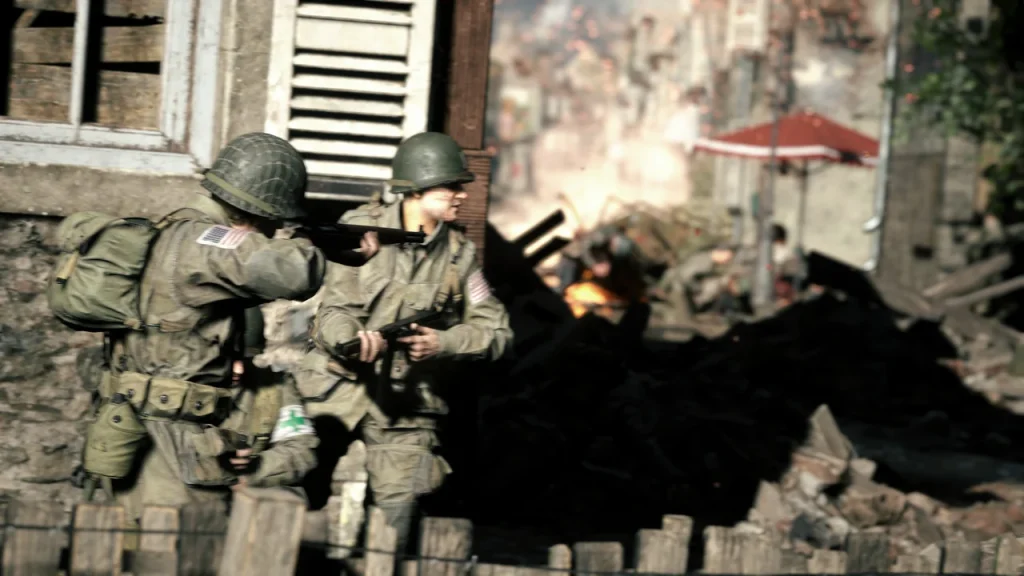
Use this Hell Let Loose Officer guide in this order: role, item, audience and game state. Use the actual selected names and displayed feedback to keep those questions distinct. The guide’s official scene screenshots establish the game’s setting; they do not claim to show our own Officer session, accepted watch placement or measured marker visibility.
Frequently asked questions
Is Officer the same as Commander or Spotter?
No. The handbook describes the infantry Officer, the team Commander and Recon Spotter as different roles. Later updates add another unit context through Artillery Observer. Similar communication or map functions do not establish identical permissions. Read the selected role and unit before applying an equipment or placement rule.
Why does my watch show a supply requirement?
Check its selected item. The handbook distinguishes supply-dependent garrisons from the squad-specific Outpost, which does not need supplies in that documented model. The same watch selects both. A requirement attached to the garrison preview should not be generalized into an Outpost cost or a team resource-pool rule.
Does every teammate see every Officer mark?
The handbook distinguishes marker audiences, so that assumption is unsafe. Newer updates also add specific cases, such as Update 18’s team-visible Enemy Supplies marker. Read the current category and its documented audience rather than inferring visibility from location or applying an old diagram to every later icon.
Can an Officer dismantle friendly resource nodes?
Official Patch 17.1 explicitly includes friendly Commanders and Officers in the revised friendly-node dismantling permissions. Keep that action qualified by its object category. It does not establish access to every Engineer blueprint, every supply item or every deployment object, and this article does not claim a current-client permission test.
Sources and update scope
Read November 8, 2026: officially shared developer-reviewed handbook, actual infantry leadership/unit-control pages; official Updates 14, 15.1, 15.2, 18 and 19; Patch 17.1. Older bindings and audience diagrams are attributed and qualified by later changes. No public-unit leadership experience or current-client visibility test is claimed. Four images are genuine original-game publisher screenshots.
Sources and further reading
- https://steamcommunity.com/games/686810/announcements/detail/2998819983302580038
- https://steamcommunity.com/games/686810/announcements/detail/3685678263685966107
- https://steamcommunity.com/games/686810/announcements/detail/4256546298597037885
- https://steamcommunity.com/games/686810/announcements/detail/4589818379024009616
- https://steamcommunity.com/games/686810/announcements/detail/528724050310070801
- https://steamcommunity.com/games/686810/announcements/detail/497207731782944345
- https://www.hellletloose.com/blog/update-19-changelog