TL;DR: Test the microphone in Windows, confirm the input and output devices used by Squad, and check the push-to-talk binding for the channel you want. Test Proximity, Squad, and Command separately. A working party conversation in the menu does not prove that the correct match channel is selected.
This Squad radio communication guide covers voice settings and troubleshooting. Start with the device and channel involved, then change one setting at a time. That approach distinguishes a microphone problem from a muted recipient, incorrect binding, or channel that does not include the person you expect to hear you.
Offworld’s Update 10.6 announcement documents the transition from party-menu voice to in-game Squad and Proximity VoIP. It also reports a fix for transmission stopping while the server-queue popup was open. Those details help interpret a version-specific symptom without promising that one update resolves every audio problem.
On this page
Squad radio communication guide: test the audio chain
Voice needs a working microphone, an accessible input device, the correct game binding, and a recipient in the intended channel. Receiving voice also needs a working output device and suitable volume. Test each part separately before replacing equipment or reinstalling the game.
1. Test the microphone outside Squad
Open Windows Sound settings and identify the input device you intend to use. Speak into it and check the available input-level or microphone-test feedback. If that test fails, the first problem is outside the game’s channel controls.
Confirm that a headset microphone was selected rather than a webcam or another connected device. Several inputs can have similar names. Disconnecting and reconnecting a device can also change which input Windows treats as the default.
Check the physical mute control on the headset, microphone, or inline cable. Then inspect the input level in Windows. A muted device and an input set very low can produce similar reports from other players, but they require different changes.
For a USB headset, confirm that its microphone and speakers are both available. Some devices expose separate entries for communication and playback. Read the full device name rather than selecting the first entry that contains the brand.
2. Check microphone access
Inspect Windows microphone privacy settings if the device works in one program but not another. Confirm that microphone access and desktop-app access are permitted for the relevant setup. Do not change unrelated permissions to solve an audio problem.
Close another application that is actively using the microphone if it appears to interfere, then repeat the same Windows test. Avoid changing several programs’ audio settings at once. You need to know whether a single change affected the result.
If Windows itself cannot record the input, resolve that issue first. Testing Squad’s voice channels repeatedly will not establish whether an unavailable device is receiving your speech.
3. Confirm Squad’s device selection
Inspect the game’s audio settings and any device options available in your current client. Compare them with the Windows input and output you just tested. If the game uses a system default, confirm which device that default currently identifies.
Make a single selection change and apply it using the interface’s available controls. If a device change is not recognized during the session, note that behavior and test after restarting the client. Do not assume that every version refreshes device information immediately.
Use headphones to test voice output when possible. Confirm ordinary game audio and then voice audio separately. Hearing effects establishes that playback is working, but voice can still have a separate volume or mute state.
Check the channel and its push-to-talk binding
Read the current bindings in Settings. Proximity, Squad, and Command are different voice functions. A custom keyboard configuration can make a familiar tutorial’s key irrelevant, so this guide does not prescribe fixed keys.
Check for an unintended binding conflict if pressing the voice control also activates another action. Record the existing assignment before changing it, then repeat the same channel test with the revised control.
| Channel | What to check | Why a recipient might not hear you |
|---|---|---|
| Proximity or local voice | Local-channel binding and nearby recipient | The intended person is outside that local conversation |
| Squad voice | Squad-channel binding and current squad membership | The person is not in the same squad or is muted |
| Command voice | Role eligibility and command-channel binding | The current player or recipient is not part of that channel |
| Party-menu voice | Current party membership | The menu context changed after joining a server |

Inspect any transmit indicator the current client provides while holding the relevant push-to-talk control. If no indicator appears, first check the binding and the selected voice function. If the indicator appears but nobody hears you, continue with the input and recipient checks.
Test with one player who knows which channel you are using. Ask them to report whether they heard the test clearly, quietly, intermittently, or not at all. That answer is more useful than repeated broadcasts to several unknown recipients.
After joining from a party
Update 10.6 states that party VoIP operates in the menu and transitions to Squad and Proximity VoIP once the party launches into a server. Test again after joining. The party roster and in-game squad roster can describe different loading states.
If one friend has not finished joining the expected squad, a missed test does not prove that the microphone stopped working. Confirm membership and channel context before changing the device.

Adjust voice volume without changing the wrong control
Distinguish your microphone input level from the volume at which you hear other players. Raising playback volume will not make your transmitted speech louder. Likewise, raising input sensitivity or gain will not restore a muted voice channel on your headphones.
Inspect the voice-volume controls available in the client and check individual-player mute options where applicable. Change one control, repeat the same test, and compare the result. Avoid setting everything to its maximum simply because one player was difficult to hear.
If one speaker is quiet while others are clear, ask whether they are using the intended input device. A problem affecting one person’s microphone is different from every received voice being quiet.
For distorted input, reduce an excessively high microphone level and repeat the Windows test. For intermittent speech, check the microphone connection and the push-to-talk action. Report whether the interruption happens in Windows too or only during the game.
Match the symptom to a useful next check
Use the narrowest description available. “No audio” could mean no effects, no received voice, no transmitted voice, or one inaccessible channel. Each version points to a different part of the setup.
| Symptom | First check | Next check if that passes |
|---|---|---|
| Windows records no speech | Input device, physical mute, and input level | Microphone access and device connection |
| Windows works but Squad transmits nothing | Game input and PTT binding | Channel selection and recipient membership |
| Effects play but all voice is silent | Voice-volume and mute controls | Output selection and a known speaker test |
| Only one player cannot be heard | Individual mute and that player’s input | Same-channel membership |
| Party voice works, match voice does not | Party-to-match channel transition | In-game binding and roster |
| Voice fails when a queue popup is open | Client version and exact popup state | Current official issue or fix information |
Offworld’s Update 10.6 notes specifically describe a fix for in-game VoIP stopping when players queued for another server while already on a server and the queue popup was open. Record whether your symptom matches that condition. Do not apply it to every case of silence.
The developer’s later client-only Hotfix 10.6.3 second build also discusses ongoing issues associated with the interface migration. Its listed fixes should be read individually; the existence of a newer client build does not establish that every audio defect was repaired.
Keep a short audio test record
Write down the device name, Windows test result, channel, PTT binding, recipient, and client-build information. Add the exact point at which the problem began, such as joining a server or changing the active headset.
Include whether the same problem occurs with a second eligible recipient. A single missed message can reflect that recipient’s settings or membership. A repeated failure under the same test gives the report a clearer scope.
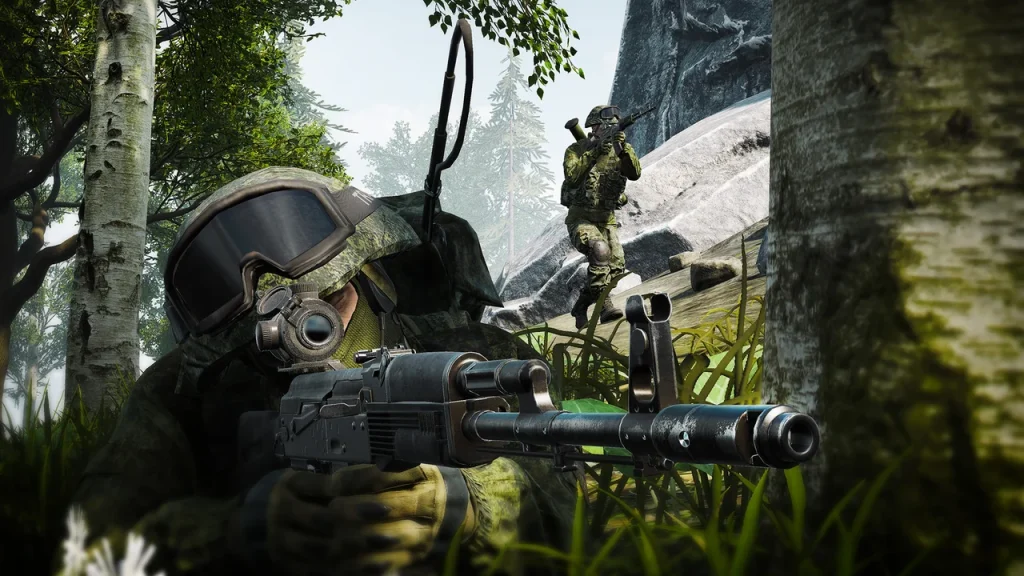
Capture settings or interface feedback where they are relevant. Official game screenshots illustrate Squad, but they do not prove your current audio configuration. Use an actual settings capture when reporting a client issue.
The Squad game hub connects the site’s related help, including the Medic guide and rally point guide. For voice problems, the next useful action is a controlled device-and-channel test rather than changing unrelated gameplay settings.

Frequently asked questions
Which push-to-talk key should I use?
Use the binding shown for the intended voice channel in your current Settings. Custom controls can differ from another player’s tutorial.
Why can I hear effects but not other players?
Check voice-volume controls, individual mutes, and the output device. Effects playback and voice playback are related but can have different settings.
Why did party voice stop after joining a server?
Update 10.6 describes a transition from party-menu voice to in-game Squad and Proximity VoIP. Confirm the new channel, binding, and squad membership.
Does a transmit indicator prove someone heard me?
No. It shows the client’s transmission action or state. Confirm reception with an eligible player in the intended channel.

Sources and update scope
Sources checked November 8, 2026: Offworld’s overview, the official Steam page, and the Update 10.6 and Hotfix 10.6.3 second-build texts returned by the official Steam news API. Windows checks are general device troubleshooting, not a claim of a verified Squad patch fix. Exact bindings and every current audio-menu label were not independently tested.