TL;DR: Roblox parental controls can be managed through a linked parent account or Parent mode on the child’s device. Open Settings → Parental controls, select the child and review the settings available for that account’s age. Content, chat, spending, screen time and notifications are separate decisions, so linking an account alone is not the whole setup.
This Roblox how to set up parental controls guide follows the current official overview read on November 11, 2026. Roblox changes age-based permissions and menu options over time. Use the controls shown for the actual child’s account rather than copying an old Parent PIN tutorial or assuming every age group has the same dashboard.
| Control area | What to review | Important limit |
|---|---|---|
| Content | Maturity level and allowed or blocked games | Specific game permissions can matter as well as the broad level |
| Chat and parties | Available communication permissions | Options depend on the child's age and eligibility |
| Spending | Monthly limit, transfers and notifications where available | Controls change as the account enters older age groups |
| Screen time | Daily limit and activity summary | From age 13 the child manages their own screen-time settings |
| Notifications | Activity and spending alerts | Real-time alerts need a linked parent account |

On this page
1. Choose how you will manage the settings
A linked parent account lets you manage the child’s settings from your own device and receive account-related emails. Parent mode lets you manage most settings on the child’s device without your own Roblox account when the child does not have a linked parent. The official overview describes both options.
Choose a linked account if ongoing remote management and alerts are useful to your family. Choose the supported Parent mode flow if you want to review settings on the child’s device and do not need the linked-account notification functions. The options are different management routes, not separate versions of the game.
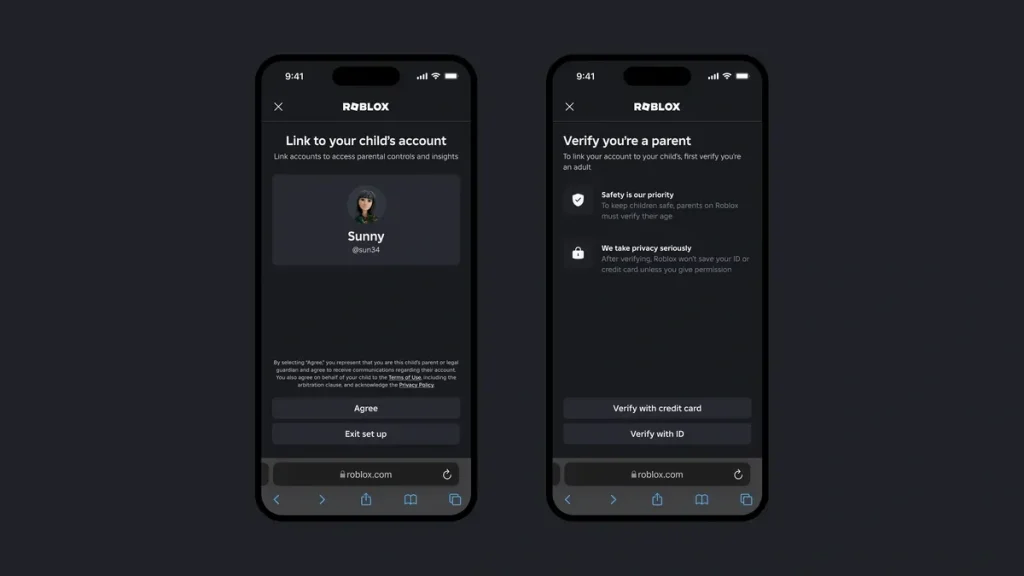
Follow Roblox’s guided parent verification and account association process. Check that the requested child account is the one you intend to manage before completing the association. A familiar display name is not enough to establish the account’s identity, because display names can be shared by different users.
2. Open the child’s control page
In a linked parent account, open Settings, select Parental controls and choose the child’s account. On desktop, Settings is reached through the gear icon; in the mobile app, use More and then Settings. The child’s page shows pending requests, Robux balance, screen time, top games and friends.
Scroll to Settings you manage to change the available controls. If you are using Parent mode, follow that mode’s on-device instructions rather than expecting the remote parent dashboard to look identical. The official overview notes that settings sending real-time alerts require a linked parent account.
If you manage more than one child, check the selected account each time you make changes. A setting for one child is not automatically evidence that the same setting applies to a sibling. Review each child’s age and currently available controls on that child’s page.
3. Review content maturity and individual games
Open Content restrictions and review the maturity slider. The official overview describes Minimal, Mild, Moderate and Restricted labels. Read the description below the selected level, then choose the setting appropriate for your family rather than treating a label as a guarantee that every game has identical content.
Review Allowed games and Blocked games as well as the general maturity setting. A child can request access to a particular game, and you can respond through the parental-control page or the supported request flow. Allowing a specific game is a decision about that game, not an instruction to relax the whole account’s content level.
The current overview also identifies Content May Vary as a separate rating with age-specific access rules. Check those rules before assuming the maturity slider covers every possible game. Preview games and sensitive-issue controls have their own settings where available.
4. Set the available communication permissions
Review the controls for chat, parties and who the child can communicate with. The choices depend on the account’s age and eligibility. Use the descriptions presented beside each control rather than assuming one switch enables or disables every communication feature across the platform and every experience.
Look at friends and privacy settings as part of this review. The dashboard provides information about friends and activity, while specific controls can manage supported contact and visibility options. Discuss what the permitted settings mean in practice so the child knows how invitations and communication are supposed to work.
If an option is absent, verify the selected account and its age-related eligibility before treating it as a technical error. A feature available to an older teen is not necessarily available to a younger child, and a parent’s management rights can change as the account gets older.

5. Review spending and notification options
Where available, set the monthly spending limit and choose spending notifications. Check the available Robux transfer options separately. A spending setting is not the same as setting the account’s gameplay time or deciding which experiences it can join.
The current overview says that spending limits no longer apply from age 13, and that older teenagers have a more limited parent-managed settings list. Do not promise that a monthly limit you configured for a younger child will stay under parental control indefinitely. Review the account when the age-based settings change.
If you want real-time spending alerts, use a linked parent account. Parent mode on the child’s device does not provide the same email-alert settings. Keep that difference in mind when choosing the management method, rather than assuming an on-device review automatically subscribes you to future notifications.
6. Set time limits and review age transitions
For an eligible younger account, inspect screen-time activity and set a daily limit where that control is offered. Look at the child’s most-played games alongside the time summary. The numbers help you understand account activity, but they do not automatically explain every reason a particular session lasted longer than expected.
According to the current overview, from age 13 the child manages their own screen-time limits and blocking. For teens 16 and older, the parent-managed area is restricted to the listed notification and activity settings. Review the official age-transition explanation for the current account rules.
This is why an older screenshot showing a larger dashboard can be misleading. Check current age-based controls before calling a missing switch a bug. If the recorded birthday is wrong, use Roblox’s official account correction process rather than treating a false age as a way to select different permissions.
7. Test the selected settings and request flow
After making changes, reopen the child’s page and verify the settings you selected. Review a supported game-access request together so both of you understand how the process works. Pending requests can be accepted or declined from the current parent page; the official overview also describes email and on-device request routes.
Record the decisions that matter to your family, such as the allowed maturity level, approved games and available spending notifications. Revisit them when the child’s age group changes or a new game is requested. A periodic review is more useful than assuming the initial setup covers every later account change.
Frequently asked questions
Do I always need my own Roblox account?
The current overview offers Parent mode on the child’s device for supported situations without a linked parent account. Linked accounts are useful for remote management and real-time notifications. Follow the available official flow for the account instead of an older universal requirement.
Why did a screen-time control disappear?
Check the child’s age and the currently selected account. The official overview says screen-time management moves to the child from age 13. The dashboard’s available parent controls can therefore change as the account gets older.
Next step: Choose the management route, review one child’s actual settings and verify content, communication and spending independently. The private-server guide explains how server invitations interact with account restrictions.
Sources and version notes
- Parental Controls Overview
- What happens as my child or teen gets older on Roblox?
- Major Updates to Our Safety Systems and Parental Controls | Roblox
Official developer, publisher and storefront pages plus separately identified editorial/community references read November 11, 2026. Recommendations reflect documented features and editorial fit; no personal playtest, price comparison, benchmark or measured SEO score is claimed. Version and mode assumptions are stated in each article. Official support pages and editorial/community mechanics references are distinguished.