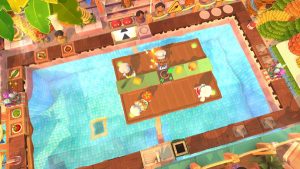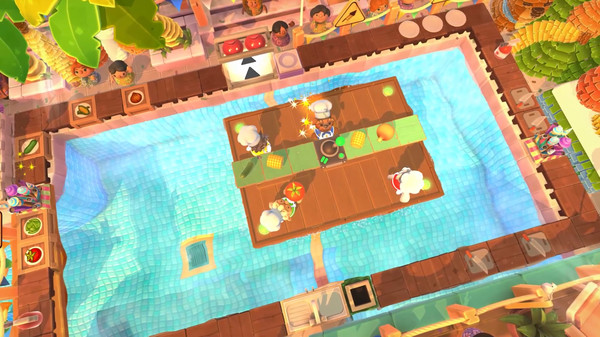
TL;DR: To set up Overcooked! 2 online co-op, launch compatible versions, choose a host and invite your friends into the game lobby before entering the campaign. Up to four chefs can participate in total. Campaign sessions use friends-list invitations; Arcade and Versus also offer public matchmaking.
This Overcooked 2 online co op setup guide focuses on building a working group and choosing the correct campaign. Platform compatibility comes first: the game’s PC storefront crossplay route does not mean every PC and console copy can join together. Confirm that distinction before following the lobby steps.

On this page
1. Confirm the game, platform and build
Have everyone read the full game title on the launch screen. Overcooked 2, the original Overcooked and All You Can Eat are separate products with different multiplayer arrangements. Gourmet Edition is an Overcooked 2 content bundle, while the current Switch 2 Edition has its own advertised features.
For a same-platform session, update everyone’s game before creating a lobby. For Windows Steam and Epic Games Store, use the documented crossplay route: the Steam player selects crossplay_branch in Library properties under Betas and waits for the download, then uses the Team17 in-game friend system. Our crossplay explanation covers the exact limits.
An online console session can require the relevant console membership and account permissions. Check the current platform requirements, especially for child accounts or profiles with multiplayer restrictions. A controller responding locally does not prove that its account can join an online game.
2. Choose one host and the intended story save
The person whose campaign you want to continue should host. Agree on that before invitations so the group does not accidentally start a new story when the intention was to resume last week’s map. Team17’s FAQ documents three save slots, making the selected slot another useful check.
Treat the host’s campaign selection as the reference for the session. Do not promise that joining copies the host’s entire world progression into every guest’s separate save. If someone wants to continue a different campaign later, let them verify their own save rather than assuming the files became identical.
For a first connection test, choose an ordinary base-game session. A DLC campaign adds content-access questions that can hide an otherwise working connection. After the group successfully joins and cooks, check the selected downloadable content before switching into it.
3. Invite friends through the correct interface
For Story mode, use the game’s invitation flow to bring in friends. Team17 distinguishes this from public Arcade or Versus matchmaking: a stranger found through matchmaking is not the usual route into your private campaign. Follow the current invite control or platform overlay shown by your release.
On a compatible Steam-only group, the Steam friend and invite flow is the straightforward route. On the Steam-to-Epic crossplay build, use the in-game Team17 friend system; the non-Steam player will not appear merely because the host opens Steam’s ordinary friends list.
Have guests accept the current game invitation while their game is open and updated. If the host rebuilt the room or changed Steam branches, send another invite. An old invitation can refer to a session that no longer matches the host’s current lobby.
4. Confirm every chef before leaving the lobby
Check the visible player slots so you know which people actually joined. Count local players as part of the total, not as extra people above the remote limit. The supported group is up to four chefs; two local people plus two remote friends already fills it.
The official FAQ documents mixed local and online play, with platform-specific joining details. It also allows two people to split a keyboard for local PC play. That local input arrangement should not be confused with letting two remote people share one keyboard across the internet; each remote device needs an appropriate local input setup.
Mixed groups should verify their exact arrangement before planning a long session. If your platform requires a particular join route, follow that route rather than assuming all local-online combinations have the same invitation behavior. A straightforward one-host, one-remote-guest test is a useful starting point.

5. Start the campaign and agree on kitchen jobs
Once everyone is visible in the lobby, enter the host’s intended campaign or choose the supported mode you want. Confirm that everyone can move their own chef in the first kitchen. A person merely watching an overlay has not necessarily entered as a player.
Give the group a simple role plan: prepare ingredients, cook, deliver and handle dishes as the layout requires. In a pair, each person covers several jobs; in a four-person kitchen, you can specialize more. Adjust when the kitchen moves or splits rather than following roles blindly.
Set up voice communication separately if your edition needs it. Team17’s FAQ identifies external chat for Steam and original Switch, while describing platform chat on PlayStation and Xbox. Use the current platform’s supported communication tools; do not assume an in-game microphone control exists on every release.
6. Fix failed joins without deleting campaign saves
If an invitation fails, recheck title, platform compatibility, Steam branch, completed updates, lobby capacity and account permissions. Those conditions can produce the same visible symptom but require different fixes. Verify each before reinstalling or changing router settings.
If public matchmaking finds people but a campaign friend cannot join, focus on the invitation and friend interface. If a friend joins the lobby but not the selected content, focus on the campaign and DLC access. If no online feature works, check the platform connection and any current service notice.
Do not delete a story save to fix a network lobby. Preserve the campaign and record the exact error text, storefronts and branch for publisher support. Change one connection condition at a time so you can identify the cause when a test finally works.
Frequently asked questions
Can I play the campaign with random matchmaking players?
The official FAQ uses friends-list invitations for campaign play. Public matchmaking is described for Arcade and Versus. Arrange a friend group for the story rather than assuming a public lobby will select the campaign save you want.
Can five people cook if one person shares the host console?
No. The limit is up to four players total. A local player occupies a session slot, so count all chefs in the lobby regardless of whether they are beside the host or connected remotely.
What should I do before the next session?
Agree which host and save you will resume, let the game finish its normal save process and keep the platform/build information available. Send fresh invitations next time rather than assuming an old lobby remains active.
Next step: Get one friend into a compatible base-game lobby, then add the remaining chefs and load the agreed story save. Once the group can move and cook, focus on communication instead of repeatedly rebuilding a working connection.
Sources and version notes
- Save 66% on Overcooked! 2 on Steam
- Overcooked! 2 – FAQ
- Overcooked! 2 – Team17 Digital LTD – The Spirit Of Independent Games
- Overcooked! 2 PC Crossplay Branch
- Overcooked! 2 – Free on Epic Games and PC Crossplay Patch
Official developer, publisher and storefront pages plus separately identified community references read November 11, 2026. Recommendations reflect documented features and editorial fit; no personal playtest, price comparison, benchmark or measured SEO score is claimed. Platform and mode limits refer to the editions named in the article.