TL;DR: Use the deployment screen to check whether a HAB is available, read its current status, and select it only when the game permits deployment. A FOB radio, HAB structure, and ammunition crate are separate game objects. After Hotfix 10.6.3, constructing a HAB no longer automatically includes a pre-built ammo crate.
This Squad HAB placement guide explains the menus and game objects behind an infantry spawn. It covers the difference between placing a construction preview and finishing a working structure, how resources affect the process, and what to inspect when a HAB appears on the map but cannot be selected.
The guide is based on Squad’s official overview and developer release notes. Menu appearance can vary with the client build and server mode. The text does not claim a recorded hands-on session, and it avoids fixed construction costs or activation distances that were not verified in the current interface.
On this page
Squad HAB placement guide: understand the three game objects
The radio defines the forward-base setup, the HAB provides an infantry deployment structure, and an ammo crate provides a separate rearming interaction. These objects have related purposes, but selecting or finishing one does not establish that the others are ready.
FOB radio
Look for the radio or FOB information associated with the base on the map and in the relevant interface. A FOB is the broader base setup; the radio is a specific object within that setup. Players often use the terms loosely in voice chat, which can make a software problem harder to describe.
When someone says the FOB is missing, ask which object or map entry they mean. The radio can have a different state from a visible HAB structure. A screenshot that includes the map entry and status is more useful for a bug report than a cropped picture of the building alone.
The placement interface governs which construction objects are available in the radio’s supported area. If a preview is rejected, inspect the message shown by the game. Do not infer eligibility solely from the apparent distance between two symbols on a zoomed-out map.
HAB
A HAB is the structure used for infantry deployment at a supported forward base. The construction preview, unfinished object, completed structure, and selectable deployment entry are different stages of the same setup. A player who sees a building in the game world has not necessarily confirmed all of those stages.
Inspect construction feedback when the object is still being built. Later, use the deployment screen to check its availability. These are separate interfaces: one describes a world object, while the other determines whether a player can deploy through it at that moment.
The structure’s model and interaction details can differ with faction or mode. Match a tutorial to the faction and server you are actually using. A familiar-looking model is not sufficient evidence that every option, resource requirement, or status message is identical.
Ammunition crate
An ammo crate gives players access to the rearming interaction supported by the base. It should be checked as its own object. A functioning deployment entry does not establish that a crate is present or that the base has enough ammunition for a particular request.
The crate distinction matters because Update 10.6 initially introduced a built-in ammunition feature for the HAB. In the Hotfix 10.6.3 release notes, Offworld explicitly reverted that change. The developer states that the HAB no longer comes with a pre-built ammo crate upon construction.
Use that dated change when comparing screenshots or videos. An older guide can accurately show its own version while describing behavior no longer expected in the hotfixed client. Check the later note before interpreting an absent attached crate as a failed installation.
Read the deployment screen before changing anything
Start with the deployment screen when the question is whether you can spawn. Find the entry associated with the HAB, read its status, and check whether the selection is enabled. Do not repeatedly click a disabled entry without first reading the available feedback.
Confirm the faction and squad shown in your session. A map can display information that helps you understand the match without making every symbol a deployment option for your current player state. Treat a visible icon and an actionable selection as different pieces of information.
If the interface displays a waiting period or unavailable state, record the message as shown. A current countdown is better evidence than a remembered time from another server. This guide does not turn one observed waiting period into a permanent rule for all layers.
When several entries are close together, zoom the map or use the available selection controls to identify the intended one. Confirm the name or location label after clicking. Overlapping icons can make it look as if a choice failed when a different object was selected.
Use the following distinction when describing an issue to your squad or server support:
| What you can see | What it establishes | What still needs checking |
|---|---|---|
| A HAB model in the world | The structure exists visually | Construction state and deployment availability |
| A HAB symbol on the map | The interface has an entry for that object | Whether the entry is enabled for your player |
| An enabled deployment choice | The game permits that selection now | Whether the deployment completes normally |
| An ammunition crate | A rearm object exists | The resource balance and requested items |
| A radio entry | The supporting base object is represented | Its current state and associated structures |


Use placement feedback as an interface check
The placement preview is the game’s immediate test of whether the proposed construction object is allowed. Inspect its color, tooltip, and any message the client supplies. A rejection should be interpreted from that feedback rather than from a general assumption that the system is broken.
Check that you are using the appropriate kit and menu for the action. Viewing the map, selecting a spawn, and opening a construction menu are different actions. A player can successfully use one interface while lacking the role or current state required to use another.
Confirm the selected object before accepting a preview. A construction menu can contain several deployables. The label matters more than the fact that the preview has approximately the shape you expected. Taking a moment to read the selection prevents a mistaken object from being treated as a resource or map error.
If the preview does not behave as expected, cancel it and open the selection again. Check whether the same message appears for the same object. Changing multiple settings and selections at once makes it difficult to distinguish a normal restriction from an interface problem.
This step is about validating game software state. It does not provide a map-specific building location or a promise that an accepted preview creates a permanently available spawn. The subsequent construction and deployment interfaces still need to be checked.
Check construction and resource availability separately
A valid preview does not mean construction is complete. Inspect the build progress shown by the object or interaction. If another teammate is helping, verify that everyone is interacting with the same structure rather than an adjacent object.
Use the game’s inventory, FOB, or supply display to inspect available construction resources. Read both the resource label and its amount. Construction supplies and ammunition are separate categories, so an apparently healthy ammunition balance does not necessarily solve a building requirement.
When the current interface shows a required amount, compare it with the corresponding resource balance. Read the actual requirement for the selected object and faction. Do not copy a number from this guide into your session; current costs were not independently tested for every structure.
After construction completes, return to the deployment screen and inspect the resulting entry. This final check confirms a different outcome from the build progress. If the structure is finished but the entry remains unavailable, investigate the displayed deployment state instead of repeating the same construction action.
For ammunition, inspect the separate crate and its rearm interface. Check whether the requested items are offered and whether the resource balance permits them. The absence of a rearm option can have a different cause from an unavailable spawn.
Compare your tutorial with the current version
The HAB ammunition change is a useful example of why a version note belongs beside a mechanism explanation. Update 10.6 described a new built-in ammo feature. Hotfix 10.6.3 subsequently removed the pre-built crate and returned the HAB to its earlier behavior.
An image captured between those releases can show an attached crate without being fabricated. What changes is the assumption you should make when following it today. Check the publication date and the later developer correction before trying to reproduce the earlier interface.
Offworld also published a client-only second build of Hotfix 10.6.3. Its release note explains that the hotfix number did not increase for that client build. This means the visible version label alone can be insufficient when comparing a reported client issue with a later fix.
Record the client build information available to you, the server mode, and the exact message involved. Avoid describing an issue simply as “the newest version.” A dated release note and a specific status give support staff something they can compare.
The official announcements are available through the Squad Steam news feed. Use the named release note relevant to your issue rather than assuming that every item in the feed changes HAB behavior.

Troubleshoot by the interface that failed
Identify whether the failure happened during selection, placement, construction, deployment, or rearming. Those categories prevent unrelated fixes from being applied to the same symptom. For example, changing a control binding does not supply construction resources that the interface says are absent.
| Interface problem | Information to capture | Next software check |
|---|---|---|
| Cannot open the expected menu | Selected kit and relevant control binding | Confirm the menu action in Settings |
| Placement preview is rejected | Selected object and exact rejection message | Inspect the game’s current placement restrictions |
| Building remains unfinished | Construction feedback and resource category | Check progress and available construction supplies |
| Finished HAB is not selectable | Deployment entry and its status message | Inspect the current deployment restrictions |
| Spawn works but rearming does not | Crate presence, resource amount, and requested item | Check the separate ammunition interaction |
| Tutorial shows an attached crate | Tutorial date and version | Compare Update 10.6 with Hotfix 10.6.3 |
If a problem looks like a software defect, reproduce only the affected interface action and write down what happened. Include what you expected, what actually appeared, and whether the same action behaved differently earlier in the session. That is more useful than a general claim that the whole base system stopped working.
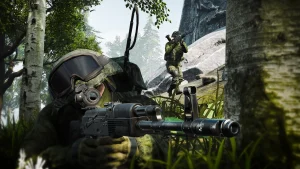
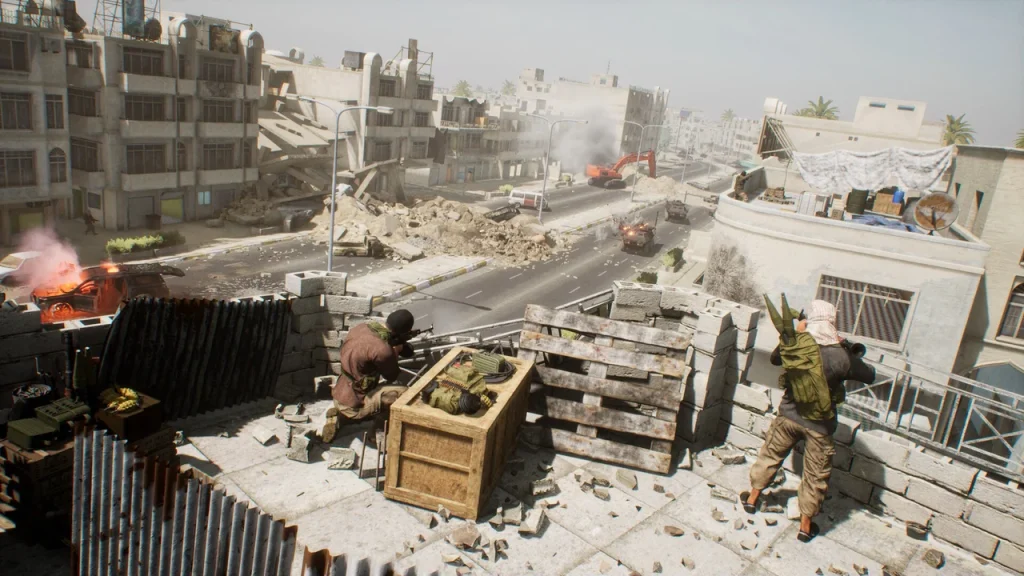
Use a screenshot of the actual message when possible. Official promotional screenshots illustrate the game, but they do not document your current client state. Keep those two image purposes separate when asking for help or reading this article.

Related game help
The Squad game hub collects the site’s software and role guides. Our rally point guide concerns another deployment object, while the Medic guide explains the game’s medical-role interactions.
For a HAB issue, the next useful action is a status check in the interface where it occurred. Confirm the object, resource category, and message before asking another player to repeat an action. That makes the report precise without assuming a cause the game has not shown.
Frequently asked questions
Is a FOB radio the same object as a HAB?
No. The radio supports the forward-base setup, while the HAB is an infantry deployment structure. Inspect their states separately rather than using a visible building as proof that the entire base is functioning.
Why is there no attached ammunition crate?
Hotfix 10.6.3 reverted the HAB change introduced in Update 10.6. The developer states that the HAB no longer comes with a pre-built ammo crate. Check for a separate crate and the relevant ammunition resources.
Does a map icon guarantee I can deploy?
No. Read the selectable entry and its current status in the deployment screen. A visible map symbol is different from an enabled deployment action.
Which numbers should I use for construction requirements?
Use the current game’s requirement for the selected object and resource category. This article does not provide unverified fixed costs, distances, or waiting periods.
Sources and update scope
Sources checked November 8, 2026: Offworld’s game overview, the official Steam store page, Update 10.6, Hotfix 10.6.3, and its client-only second build. The release-note texts were read through the official Steam news API. Screenshots are publisher-supplied game images; they are not screenshots captured during a test session by this site.